Introducing ClickUp Context, Reviews That Know Why the Code Was Written
Revix AI finds the ClickUp task behind each pull request, checks the code against its acceptance criteria, and moves the task when the PR opens and merges.

Revix AI now reads the ClickUp task behind every pull request and reviews the code against what the task asked for. It works on GitHub, GitLab, and Bitbucket Cloud. It can also move the task when the PR opens and when it merges.
ClickUp Context does for ClickUp teams what Linear Context does for Linear and Jira Context does for Jira.
On every pull request that links a ClickUp task, Revix AI:
- Finds the task: from the branch name, PR title, or PR body
- Reads it: description, acceptance criteria, status, priority, tags, and comments
- Checks the code: each acceptance criterion is marked met or not met
- Moves it: to the status you pick when the PR opens, and again when it merges
- Comments on merge: so people in ClickUp see the PR where they already look
Finds and reads the ClickUp task
Revix AI looks for a task reference in the branch name, PR title, and PR body. You don't need any special keywords. These formats work:
- ClickUp's own branch names from "copy branch name", like
CU-86b0xyz12_export-members - the task ID with a hash, like
#86b0xyz12 - the task URL, like
app.clickup.com/t/86b0xyz12 - custom task IDs, like
DEV-123, for workspaces that turn them on
A # reference needs at least six characters, with both letters and digits, so short tags like #42 and #wip are ignored. A PR can link more than one task.
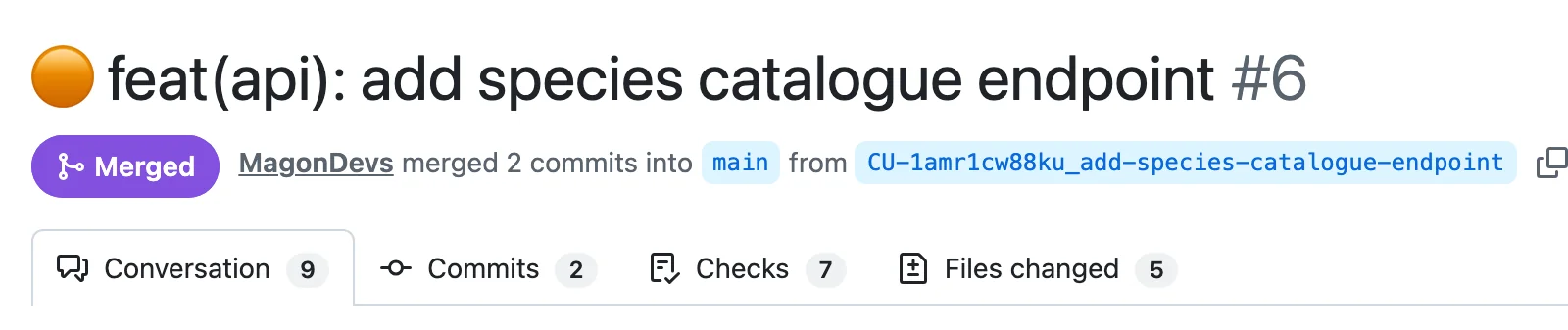
In our test repo, the branch came straight from ClickUp, so the task ID was already in its name.
Once a task resolves in the workspace you connected, Revix AI pulls:
- title and markdown description
- acceptance criteria, read from the description
- status, priority, and tags
- the list the task sits in
- assignees
- up to the 20 latest comments
Here is the task from that test in ClickUp, with its status, priority, tag, and the context written for whoever picks it up.
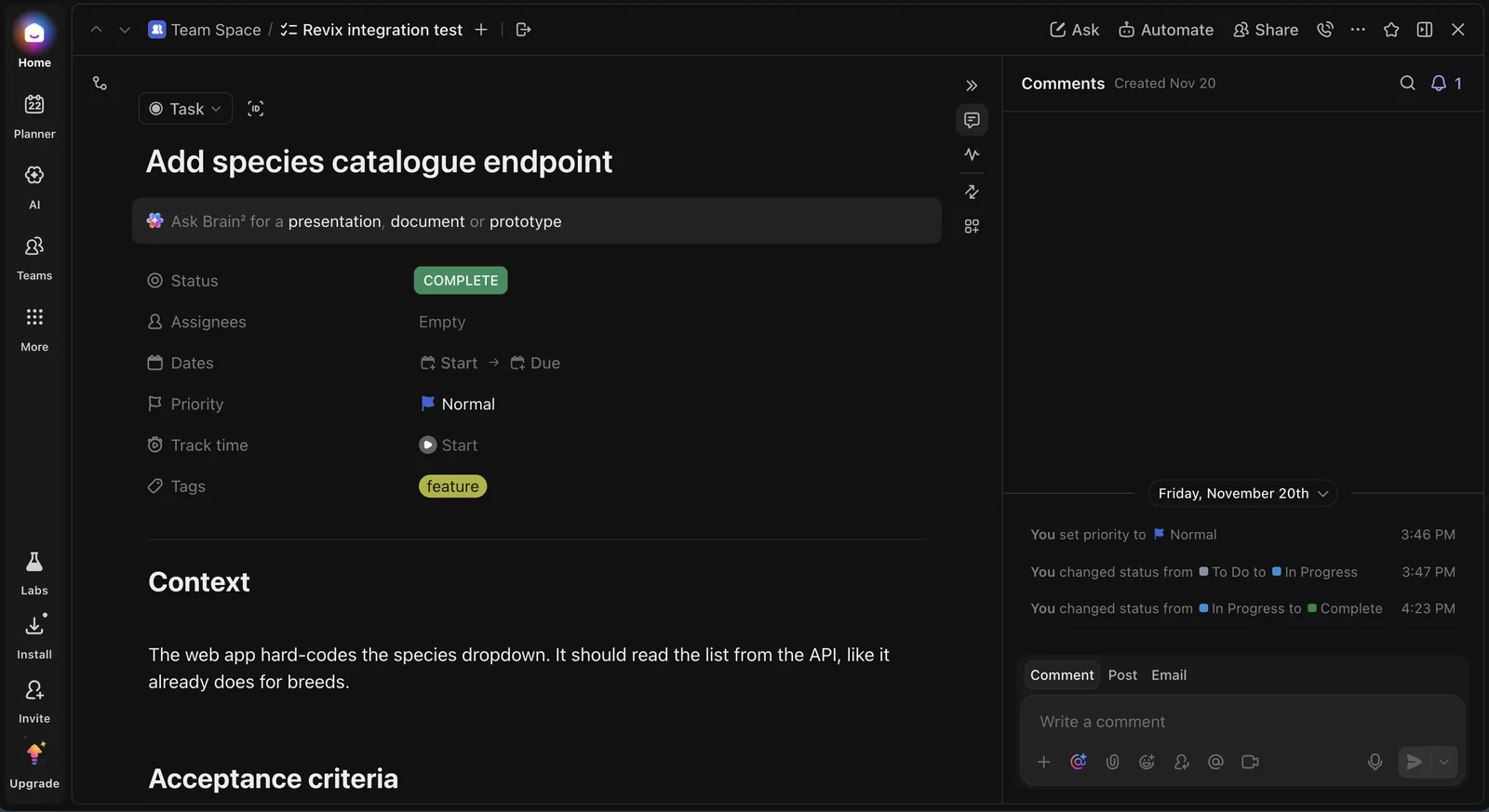
That context goes into the review next to the diff, so the review can flag code that follows every convention and still misses part of the task.
Checks the code against the acceptance criteria
Revix AI judges each acceptance criterion against the code and marks it met or not met. The PR summary includes a Task Description table with the linked ClickUp task and that checklist.
In a test repo, we opened a PR that linked a ClickUp task. The task listed four acceptance criteria in its description.
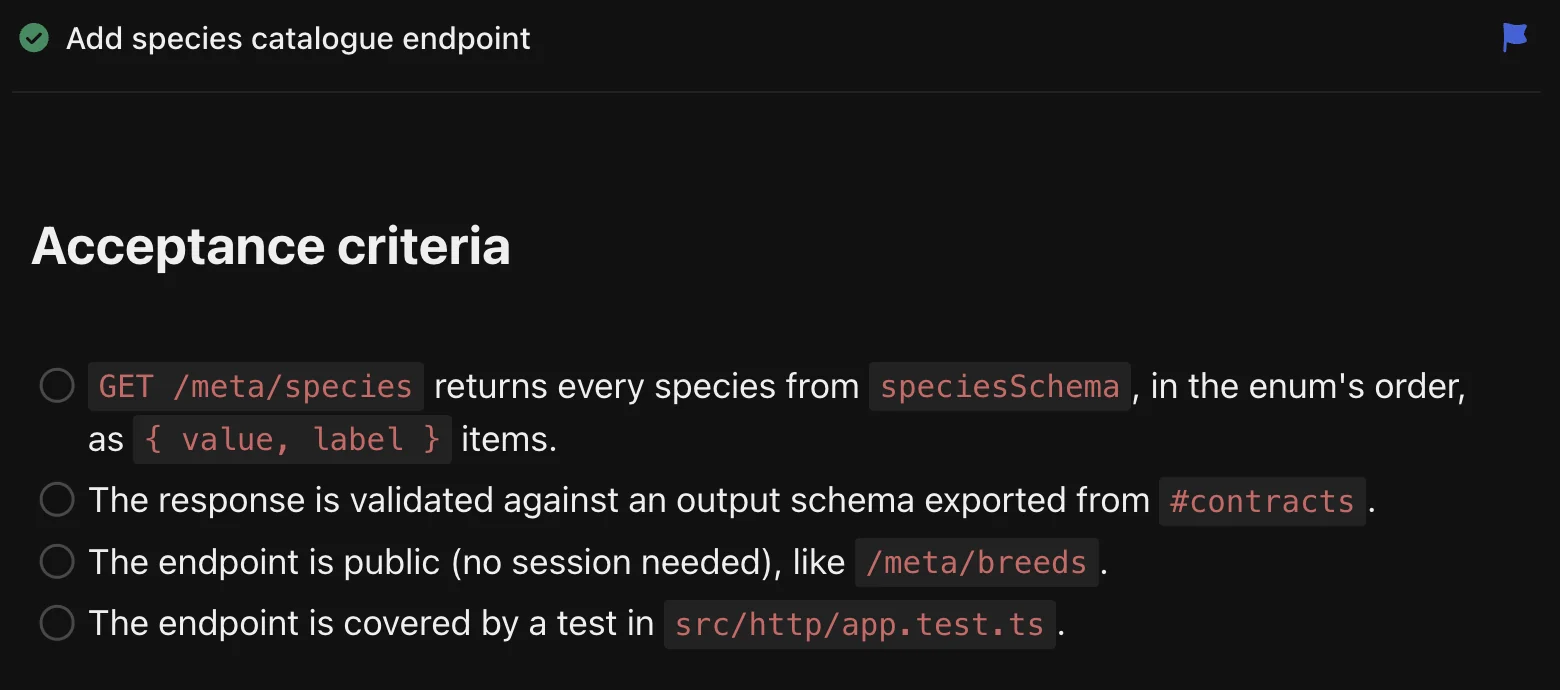
The PR summary listed the task in the Task Description table with that criteria checklist, the same layout Jira and Linear tasks get.
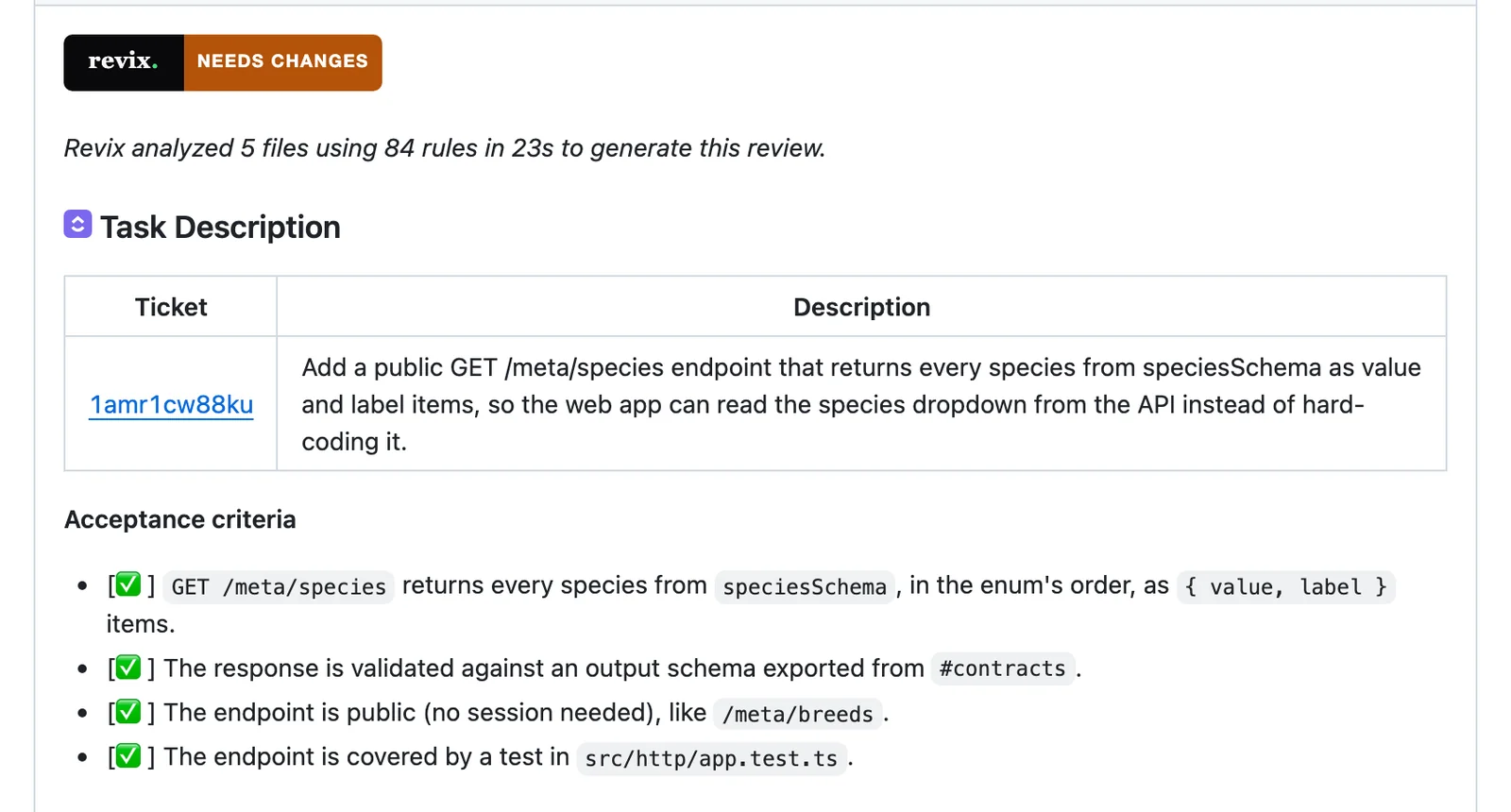
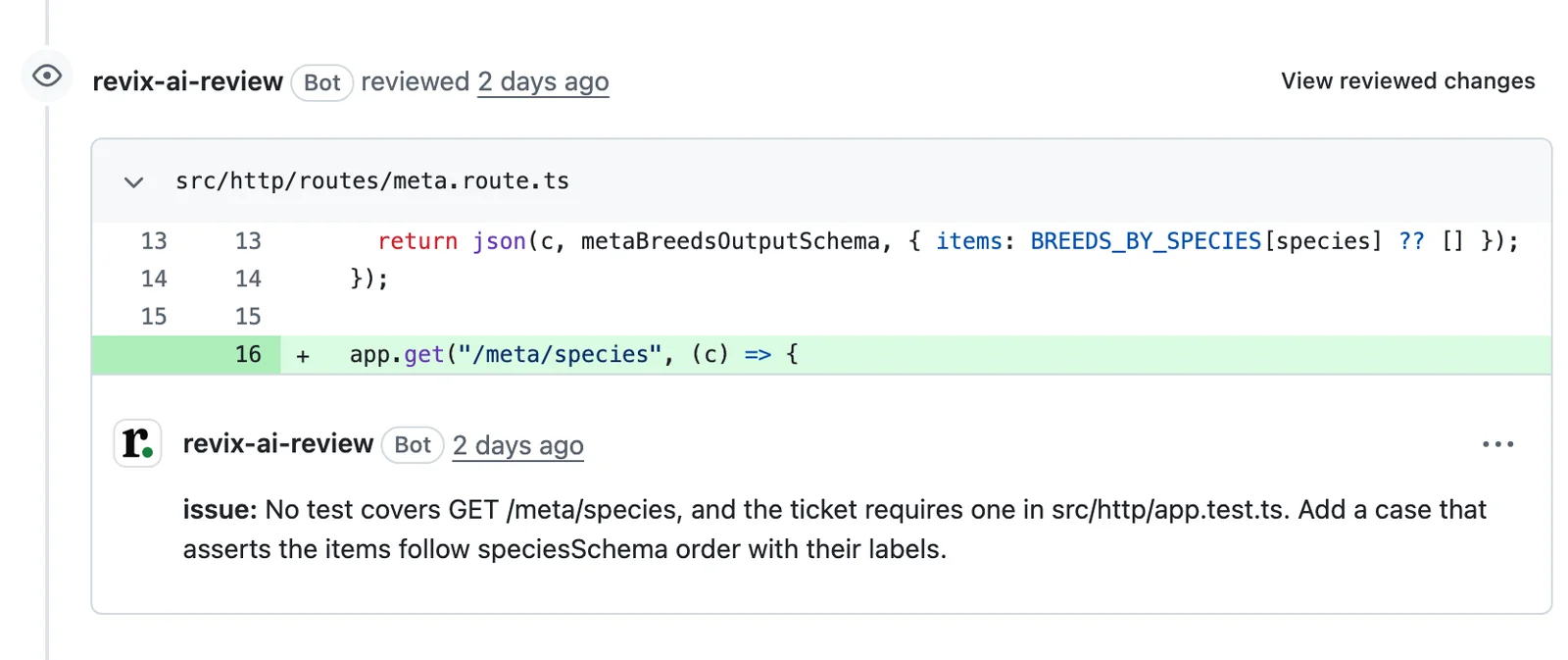
One criterion asked for a test in src/http/app.test.ts. Revix AI left an inline comment on the new route saying no test covered it, and pointed back to the task.
Moves the task on your board
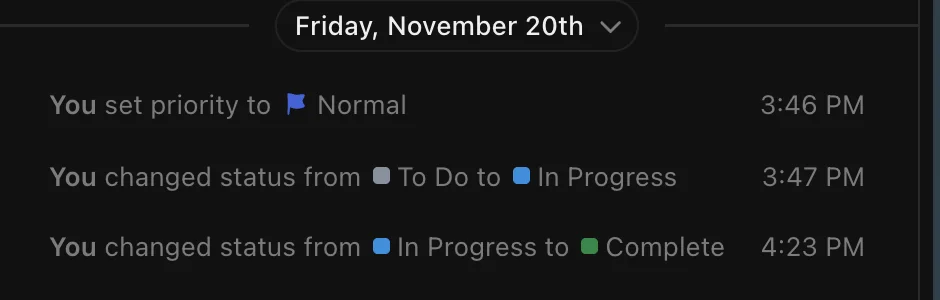
You set a status for when a PR opens and another for when it merges, and Revix AI moves the task to that status. Matching is not case sensitive, and a task already in that status is left alone. Leave a setting empty and Revix AI won't move the task for that event.
If a status name doesn't exist in the task's list, the error lists the statuses that do.
In our test, the task went from To Do to In Progress, and then to Complete.
Comments on merge
When the PR merges, Revix AI also leaves a comment on the task, as plain text that doesn't notify everyone on it.
None of this blocks the review. If ClickUp can't be reached or a task can't be read, Revix AI skips the task, and the review still runs and still posts.
What to know before you connect ClickUp
A Revix workspace owner or admin connects ClickUp from the Integrations page, through ClickUp's OAuth. ClickUp Context is available on the Pro plan.

- Which workspaces: you tick the ClickUp workspaces to authorize. With more than one, you pick which one the installation uses. A task from another workspace is treated as not found.
- Status names: statuses are set per list in ClickUp, so the names you enter have to exist in each list you want moved.
- Parent tasks: Revix AI reads the list name, not the parent task name.
- Who it acts as: comments and status changes appear as the person who connected ClickUp.
- Disconnecting: ClickUp has no revoke endpoint, so disconnecting in Revix AI doesn't revoke the token on ClickUp's side.
Why task context matters
Good AI code review reads the task as well as the diff. We've written before about what a reviewer sees when it reads the whole repo instead of just the diff. ClickUp Context gives Revix AI the task side of the review.
Connect ClickUp in Revix AI from the Integrations page and see it on your next PR. Link a task from the branch name and the review reads it.
Frequently asked questions
Keep reading
- Introducing Linear Context, Reviews That Know Why the Code Was WrittenRevix AI now finds the Linear issue behind every pull request, reviews the code against what the issue asked for, and updates the issue when the PR merges.
- Introducing Jira Context, Reviews That Know Why the Code Was WrittenRevix AI now finds the Jira ticket behind every pull request, reviews the code against what the ticket asked for, and updates the ticket when the PR merges.